

View Your Overall Canvas Course Score In Panorama
The Course Report in YuJa Panorama provides an overall accessibility score for your Canvas course, giving you a broader view of accessibility across your course content rather than requiring you to review files one at a time.
The overall score is based on the files Panorama has scanned in the course. This can include older or unused files that are still stored in the course, so regularly cleaning up your course files can help ensure the score more accurately reflects the content you are currently using.
Open the Course Report
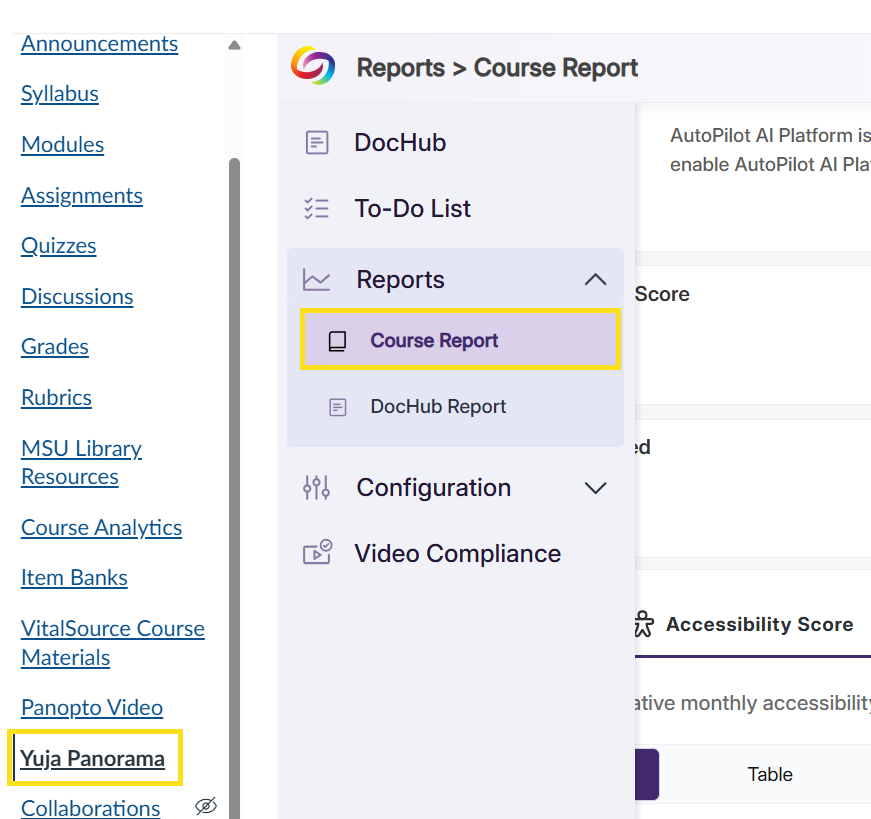
- Open your Canvas course.
-
Select YuJa Panorama from the course navigation menu.
If YuJa Panorama is not visible, you may need to enable it in the course navigation.
- Under Reports, select Course Report.
Understand Your Overall Accessibility Score
At the top of the Course Report, you'll see an overview of accessibility across the course.
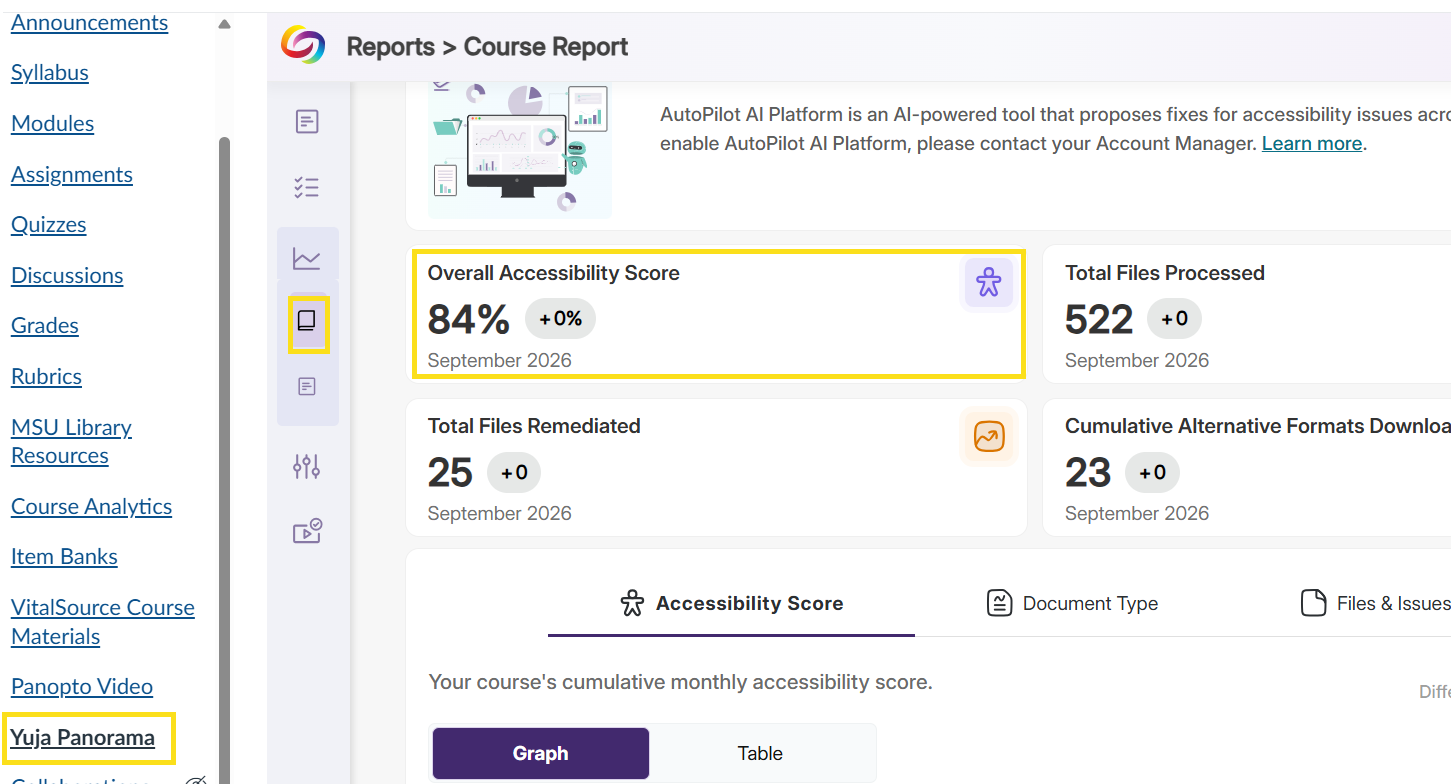
The overview includes:
Overall Accessibility Score
Provides a course-level accessibility score based on the content Panorama has scanned.
Total Files Processed
The number of course files Panorama has scanned for accessibility.
Total Files Remediated
The number of files that have been updated to address accessibility issues.
Cumulative Alternative Formats Downloaded
The number of alternative formats of course content that have been downloaded.
Keep your course files current-The Overall Accessibility Score includes scanned files in the course, not only the files students are currently using. Older files, duplicate documents, or content that is no longer in use may therefore affect the course score. Regularly reviewing and removing unused files helps keep your course organized and makes the Course Report a more accurate reflection of your active course content.
Explore What's Contributing to Your Score
The Course Report includes three tabs that help you understand the overall score and identify content that may need attention.
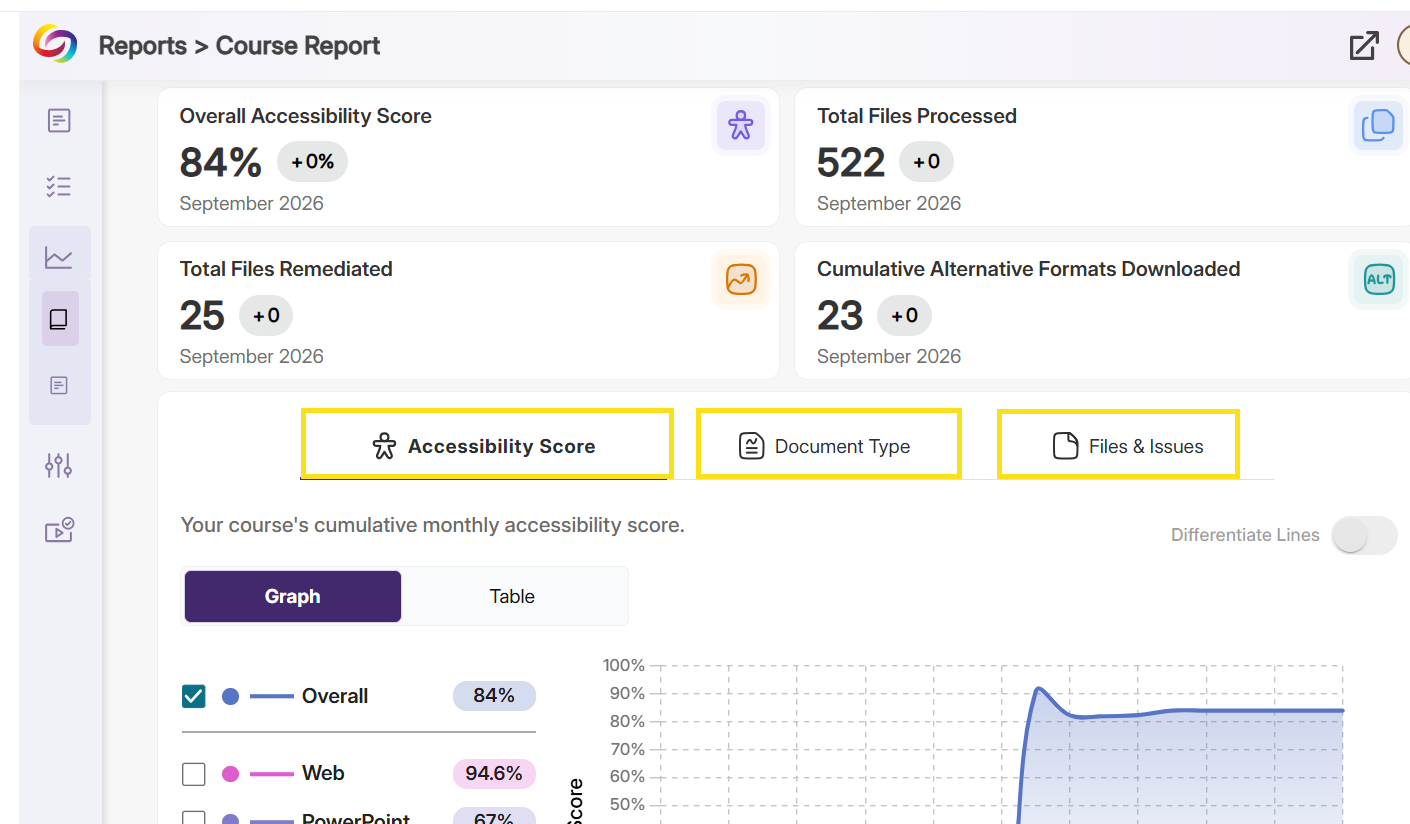
Accessibility Score
Shows how scanned course content is distributed across the different accessibility score ranges. Use this view to get a quick picture of accessibility across the course.
Document Type
Breaks down accessibility results by file type, such as PDFs, Word documents, and PowerPoint presentations. This can help identify types of content that may need additional attention.
Files and Issues
Lists individual files and the accessibility issues Panorama has identified. This is where you can move from the overall course score to the specific files and issues contributing to the results.
Review and Improve Individual Files
Select an individual file or issue to view more information about what Panorama identified and the available options for addressing it.
As files are reviewed, remediated, replaced, or removed when they are no longer needed, the Course Report can provide a clearer picture of the accessibility of the content that makes up your course.